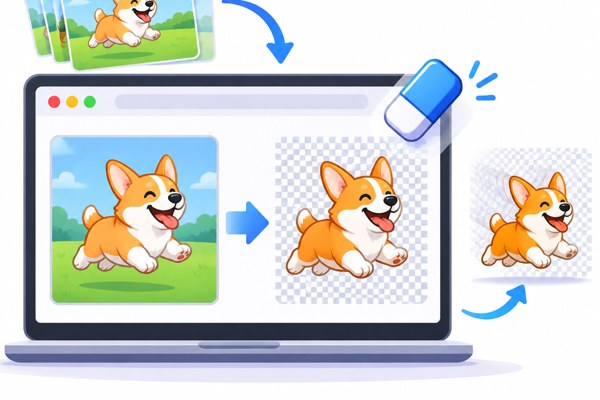
Removing the background from animated GIFs can transform your visuals by allowing you to seamlessly blend them into websites, presentations, social media posts, and marketing materials. Traditionally, background removal has been an involved process, often requiring desktop software and technical skills. Luckily, a variety of browser-based tools now make it easy to remove backgrounds from GIFs right from your browser, without any complex setup.
Why Remove Backgrounds from Animated GIFs?
Background-free GIFs have several practical uses for non-developers, marketers, founders, and digital creators looking to boost productivity and engagement:
- Embed GIFs on different backgrounds without awkward borders or color clashes.
- Create standout marketing visuals by overlaying GIFs on branded or thematic backgrounds.
- Improve clarity and focus by isolating the animated subject from distracting scenery.
- Craft custom memes, stickers, or reactions suited perfectly to your campaign or app interface.
With browser tools, you can achieve these outcomes quickly, even if you don’t have advanced design or coding experience.
Top Browser Tools for Removing GIF Backgrounds
Several specialized websites offer user-friendly options to remove backgrounds from animated GIFs. Here are a few notable ones to consider:
- GifNoBg (gifnobg.com): Processes GIFs, WebP, and APNG formats to deliver transparent-background animations through an intuitive interface.
- AnimateImage (animateimage.org): Offers free removal of flat background colors with a simple color keying method, ideal for solid color backgrounds.
- RemoveBackgroundFromVideo.org (removebackgroundfromvideo.org): Supports backgrounds removal from GIFs and short videos, with output options including transparent GIF and WebM files.
- AnimGen AI (animgen.com): A privacy-focused tool that processes animations locally, handling green screen and blue screen backgrounds without requiring account sign-up.
- GIF Background Remover by ImgPilot (imgpilot.app): Removes backgrounds while preserving animation motions, letting you add text, stickers, or AI-generated backgrounds afterward.
Step-by-Step Guide to Removing Backgrounds in Your Browser
To remove the background from an animated GIF, follow these general steps. The exact UI differs slightly by tool, but the flow below applies broadly:
- Choose your GIF background remover: Pick from one of the recommended browser tools based on your specific needs like file size limit and background complexity.
- Upload your animated GIF: Most tools allow drag-and-drop or file upload up to limits typically between 25-50MB.
- Select background removal method: Tools may offer automatic AI removal, color keying (for flat backgrounds), or manual adjustments.
- Preview the result: Verify if the animation is preserved, and the background has been successfully eliminated.
- Download the transparent GIF: Export your new GIF with a transparent background or sometimes in alternate formats like WebM.
- Optional enhancements: Add new backgrounds, text, or effects using tools like ImgPilot if providing post-processing options.
Tips for Best Results When Removing Animated GIF Backgrounds
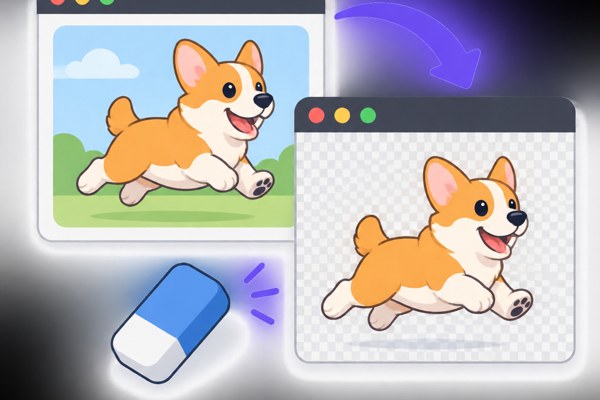
- Start with high-quality GIFs: A clear and well-lit GIF improves background detection accuracy.
- Use GIFs with simple or solid backgrounds: Flat colors or green screens work best for color key removal methods.
- Check file size and duration limits: Many online tools cap GIFs to about 25-50 MB and 30-60 seconds duration.
- If needed, split longer or larger GIFs: Use tools to trim or reduce file size before background removal.
- Test multiple tools: Each tool has strengths in handling certain backgrounds or file types; experiment for your GIF’s characteristics.
- Keep animation intact: Select tools that explicitly mention preserving frame sequences to avoid broken or static GIFs.
Quick Checklist Before and After Background Removal
- Is the GIF within the size and length limits of your chosen tool?
- Does the background have uniform color, or is it complex? Pick the tool accordingly.
- Have you previewed the transparent GIF to ensure quality?
- Does your output format fit your intended use (GIF vs. WebM)?
- Have you saved a copy of the original GIF before editing?
- If necessary, did you add new backgrounds or text after removal?
Next Steps to Integrate Your Transparent GIFs
After you remove the background from your animated GIF, consider these options to maximize impact and productivity:
- Use in presentations and marketing creatives: Overlay GIFs without visible borders on slides or campaigns.
- Embed on websites with dynamic backgrounds: Add motion without disrupting site design aesthetics.
- Create unique social media content: Transparent GIFs can be inserted into stories or posts with custom backgrounds.
- Explore app or product UI enhancements: Use transparent animations for onboarding or feature highlights.
- Learn more about digital productivity tools and marketing strategies by visiting our Productivity category for additional guides and tips.
Removing backgrounds from animated GIFs has never been easier, thanks to these practical browser tools that save time and enhance your content’s visual appeal. With a few simple steps and the right tool, you unlock new possibilities for creating impactful animations that fit your brand and communication goals. Start experimenting today and elevate your digital projects with polished, professional-quality GIFs.