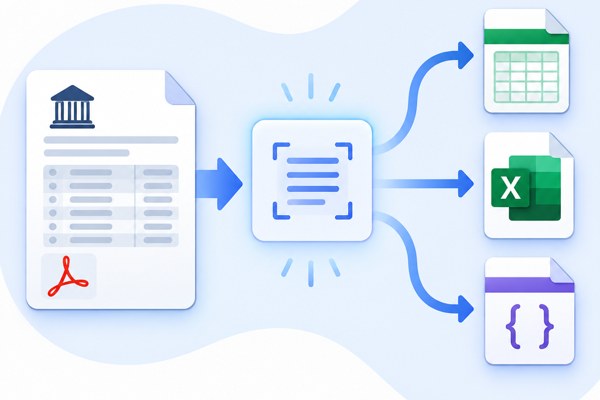
Managing your financial data efficiently can be a game-changer for productivity, especially when dealing with bank statements. If you regularly work with bank statement PDFs, manually extracting data into usable formats like CSV, Excel, or JSON can be tedious and error-prone. Fortunately, services like Parse My Statement streamline this process, letting you convert your bank statements quickly and accurately. This guide walks you through how to use Parse My Statement and explores practical tips for optimizing your financial workflows.
Why Convert Bank Statements to CSV, Excel, or JSON?
Bank statements in PDF form are common, but they’re not always the easiest to analyze or manipulate. Converting these PDFs to structured data formats provides several benefits:
- Easier data analysis: CSV and Excel files can be opened in spreadsheet tools, enabling sorting, filtering, and visualization of transactions.
- Automation readiness: JSON and CSV formats allow seamless integration with accounting software, budgeting apps, or custom scripts.
- Improved accuracy: Automated extraction reduces manual data entry errors.
- Time savings: Quickly process multi-page statements without retyping or manual copying.
Whether you are a startup founder tracking expenses, a marketer handling budgets, or simply looking to improve your productivity, converting bank statements into reusable formats is an essential step.
Getting Started with Parse My Statement
Parse My Statement is a dedicated online conversion tool that turns bank statement PDFs into CSV, Excel, or JSON data with high accuracy and user-friendly features. Here’s how to use it effectively:
- Upload your PDF: You can drop a single or multi-page bank statement PDF directly onto the platform. Guest mode allows uploads of single pages, while signing up lets you process bigger documents and access recent conversions.
- Live preview of data: After uploading, you can see a parsed preview of your transactions. This enables you to verify and correct any issues before downloading.
- Choose your format: Export your statement as a CSV, Excel spreadsheet, or JSON file depending on your use case.
- Access conversion history: Signed-in users benefit from a 24-hour history of converted statements for easy reference.
Parse My Statement supports both digital PDFs and scanned documents up to 20 MB, making it versatile enough for most personal and professional needs.
Maximizing Accuracy and Efficiency
One of the standout features of Parse My Statement is its accuracy, with a 93% mean transaction F1 score and 99% date extraction accuracy reported. To get the best results:
- Check the preview carefully: Use the live preview to spot any misclassified transactions or formatting errors.
- Clean PDFs improve results: Scanned statements might need to be scanned at higher resolution if data is unclear.
- Consistent statement layouts: Using statements from the same bank or format helps the tool recognize patterns more effectively.
- Batch upload for regular users: Consider a paid plan if you handle many statements monthly. This reduces manual overhead and unlocks multi-page batch processing.
By incorporating these tips, you boost productivity and reduce manual correction time, turning a tedious task into a streamlined process.
Pricing and Plans Overview
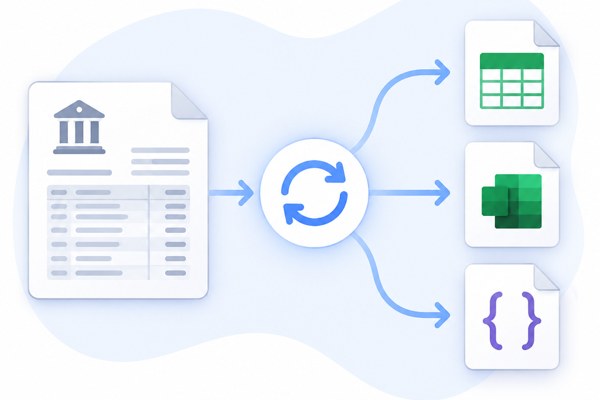
Parse My Statement offers flexible pricing options based on your statement processing needs:
- Free plan: Suitable for occasional, single-page conversions.
- Pro 400 plan for $15/month: Process up to 400 pages monthly with access to multi-page uploads and 24-hour history.
- Scale 1000 plan for $30/month: Ideal for high-volume users, allowing 1000 pages per month plus priority processing.
Choosing the right plan depends on how frequently you convert statements and the volume of transactions. The free tier is a good starting point for casual users or first-time testers.
Alternatives to Consider
While Parse My Statement is robust, reviewing alternatives can help you find the best fit:
- BankRead: Supports PDF, invoice, and receipt parsing in multiple languages. Suitable if you want versatile document extraction beyond bank statements.
- StatementConverter: A free, no-signup-required tool that emphasizes data privacy by deleting uploads post-conversion.
- More productivity guides at Inspire Tech Today: Explore additional tips on managing and optimizing workflows using technology.
Quick Checklist for Smooth Conversion Workflow
- Verify the PDF quality before upload (digital or high-res scan).
- Preview parsed output to catch errors early.
- Choose the data format that fits your next step (CSV for spreadsheets, JSON for software integrations).
- Use the free tier to test, then upgrade if you need batch processing or higher limits.
- Backup important extracted data in multiple formats.
- Keep your accounts secure by avoiding shared devices for financial file uploads.
Wrapping Up and Next Steps
Converting bank statement PDFs to actionable data formats like CSV, Excel, and JSON is now hassle-free with Parse My Statement. This not only saves you time but also reduces errors inherent to manual data entry. Whether you are handling personal finances, running a startup, or managing marketing budgets, leveraging this tool can significantly improve your data processing workflows.
Start by testing the free tier of Parse My Statement on your next bank statement PDF, and explore how the live preview and export options simplify your bookkeeping or financial analysis. For further productivity tips and guides on app creation and marketing, visit Inspire Tech Today’s Productivity section to discover practical strategies tailored for builders, marketers, and founders.