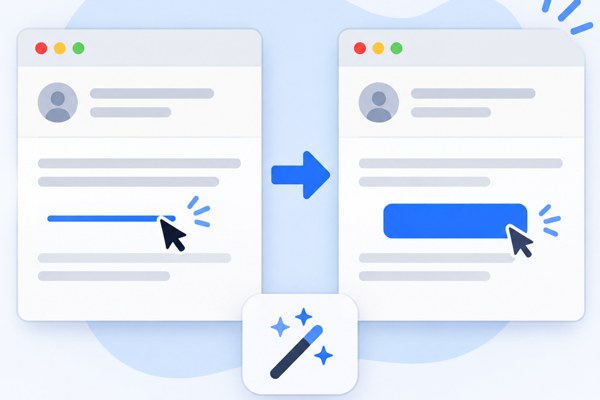
Email communication remains a critical channel for marketing, networking, and productivity. Yet, plain text links in emails often get overlooked, reducing engagement and click-through rates. What if you could easily transform those links into eye-catching buttons directly inside Gmail without any coding? This is exactly what Email Buttons, a handy Chrome extension, enables you to do.
Make Your Emails Stand Out with Clickable Buttons
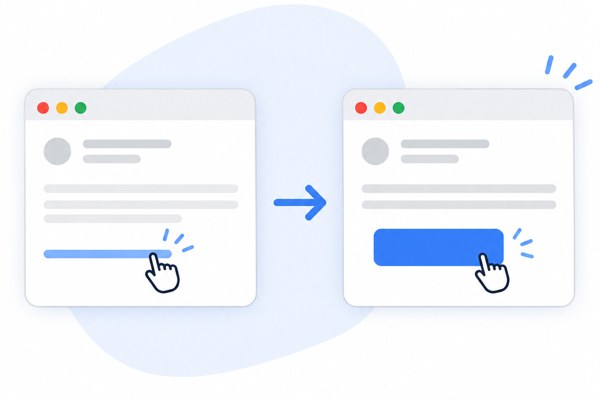
When you send an email with a plain text link, it can blend into the rest of the content and fail to grab attention. Converting these into visually distinct buttons adds clarity and encourages recipients to take action. Email Buttons integrates directly into Gmail’s compose window and lets you replace simple text URLs with customizable call-to-action (CTA) buttons that look professional and appealing.
Key benefits include:
- Increased click-through rates: Buttons create a clear visual target and foster more engagement than plain links.
- Improved email design: You keep your emails looking sharp without complex HTML coding.
- User-friendly customization: Change colors, text, padding, and shape with a few clicks.
How to Add Buttons in Gmail Using Email Buttons
Setting up and using Email Buttons is straightforward:
- Install the extension: Download Email Buttons from the Chrome Web Store at emailbuttons.com.
- Open Gmail compose window: Once installed, start a new email or reply to an existing one.
- Insert button: Look for the new button icon added to Gmail’s formatting toolbar.
- Customize the button: Enter your CTA text, destination URL, and adjust the background color, font color, corner radius, and padding.
- Insert into your email: The button is added as a clickable, email-safe element, rendering perfectly across major email clients.
Everything happens live during email drafting, so you see exactly how the button will appear when the email is sent.
Customizing Buttons for Maximum Impact
The power of Email Buttons lies in its flexible design options that ensure your buttons align with your branding or campaign style. Here are ways to make your buttons compelling:
- Text: Use action-oriented phrases like “Download Now,” “Register Here,” or “Get Discount.” Clear CTAs convert better.
- Colors: Pick a background color that contrasts with your email body for visibility. Use brand colors to maintain consistency.
- Shape and size: Adjust corner radius for rounded or squared buttons. Modify padding to ensure button size suits mobile and desktop views.
- Accessibility: Choose text colors that meet contrast requirements for readability.
Ensuring Compatibility and Performance
Email Buttons is lightweight, adding only 16 KB to your Chrome browser, so it won’t slow down Gmail performance. It’s designed to ensure buttons display correctly across major email clients including Gmail, Outlook, Apple Mail, and most mobile devices. This cross-platform compatibility means you don’t have to worry about your buttons breaking or looking off-brand when recipients open your message.
In comparison, a similar tool called Gmail Button Inserter offers comparable customization and seamless Gmail integration. Both tools are practical for marketers and builders looking to make emails more interactive without technical hurdles.
Checklist: Turning Links into Buttons in Gmail
- Install Email Buttons Chrome extension from emailbuttons.com
- Open Gmail compose window and click the new button icon on the toolbar
- Type your button text and paste the destination URL
- Choose background and text color for high contrast
- Adjust padding and corner radius to match your style
- Insert button and preview in compose window
- Send your email confident that buttons will render properly on all devices
Moving Forward: Combining Buttons with Your Email Strategy
Once you start using buttons in Gmail emails, consider how to integrate this into broader email marketing and communication efforts. Clear, clickable buttons can improve engagement in newsletters, sales outreach, event invitations, or internal communications. Pair visually distinct CTAs with personalized messaging and well-timed send schedules to maximize response rates.
For those interested in building custom web or mobile applications, or boosting digital marketing productivity, understanding simple tools like Email Buttons is a practical first step toward better user experience and conversion. Explore more hands-on guides and productivity tips at Inspire Tech Today’s productivity page to accelerate your tech skills and app marketing strategies.
By turning basic email links into clickable buttons, you leverage a small but impactful UI improvement that drives measurable results without extra complexity.